![Voltaiq_Logo_Black_Transparent- 600.png]](https://1913583.hs-sites.com/hs-fs/hubfs/Voltaiq_Logo_Black_Transparent-%20600.png?height=42&name=Voltaiq_Logo_Black_Transparent-%20600.png)
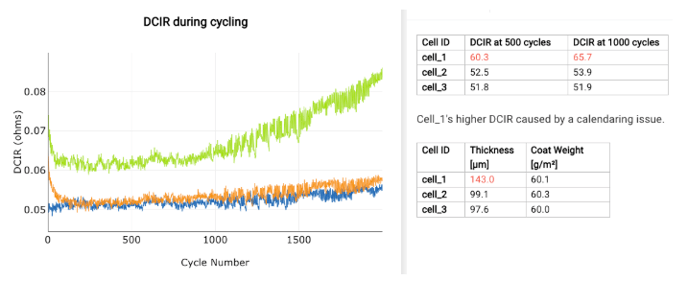
Text blocks are a widget type that allows control over text, tables, and images. Some common use cases include embedding SEM images, metadata tables, or a description of a procedure. Some common use cases can be found here.
Creating a text block
1. Click 'Manage Widgets' in the top right of the charting panel.
2. Under "Add:", choose "Text Block Widget".

3. Resize the text block using the bottom right corner of the text block.

Formatting the text block
The text block supports the following formatting options, which are all located on the formatting bar:

Heading: Allows the selection of heading and title styles.
Font Size: Controls the size of the text.
Bold & Italics: Controls the styling for selected text.
More Styles: Controls underlining, strikethrough, subscript, and superscript styles.
Font Color: Controls the color of the text.
Left, Center, Right Align: Aligns text in the desired direction.
Bulleted List: Places a bullet before each line of text.
Numbered List: Places a sequential number before each line of text.
Increase & Decrease Indent: Increases or decreases the indent.
Insert Table: Inserts an MxN table, where M is the number of rows and N is the number of columns.
Insert Rule: Inserts a horizontal bar.
Insert Image: Inserts an image.