![Voltaiq_Logo_Black_Transparent- 600.png]](https://1913583.hs-sites.com/hs-fs/hubfs/Voltaiq_Logo_Black_Transparent-%20600.png?height=42&name=Voltaiq_Logo_Black_Transparent-%20600.png)
Suppose your team is trying to figure out how thickness variation affects charge voltage. The common way to investigate this is to conduct an experiment that measures the charge voltage at various thickness levels. If five different thicknesses are being tested, they might be labeled experimental groups 1, 2, 3, 4, and 5. Plotting this experiment in Voltaiq might look something like this:
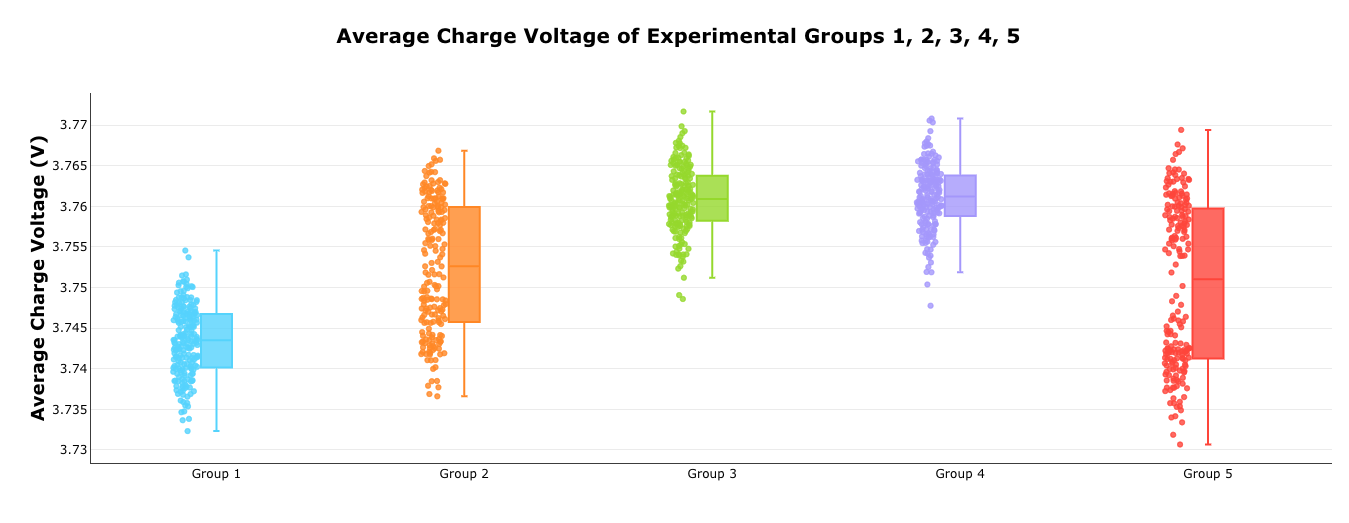 The disadvantage of this visualization strategy is that there needs to be a mapping of which thickness each group corresponds to. This requires maintaining either a verbal or written explanation of the mapping. This can be troublesome when looking at past experiments conducted months or years ago, and crucial information could be lost.
A more concise alternative is to encapsulate this information directly into the plot. Instead of plotting each of the 5 experimental groups and having to look up the meaning of each group, it is possible to plot the thickness on the X axis. This strategy makes it visually clear what the effect of thickness variation is. This plot is created with the Scatter Plot widget.

Another alternative is to use a Box Plot. This approach is ideal for a more statistical analysis. Voltaiq supports automatically grouping the data into bins. In this case, the thickness data is organized into 7 different bins.

Try it yourself:
1. Load your test data. In this case, the 5 experimental groups.

For the scatter plot:
1. Choose the scatter plot widget.

2. Select "Device Attribute" for the X axis, and then choose your metric of choice. (In this example, Cathode Coating Thickness)
3. Select a Per-Cycle Metric for the Y axis. (In this example, Mean Charge Potential)

4. Click Generate.
For the box plot:
1. Choose the box plot widget.

2. Under 'Groups & Categories', select Device Attribute, then Cathode Coating Thickness, and then enter in 8 bins. This can be thought of as the X axis.

3. Select a Per-Cycle Metric for the Y axis, as well as a cycle number. (In this example, Mean Charge Potential)
4. Click the Add button.

4. Click Generate.