![Voltaiq_Logo_Black_Transparent- 600.png]](https://1913583.hs-sites.com/hs-fs/hubfs/Voltaiq_Logo_Black_Transparent-%20600.png?height=42&name=Voltaiq_Logo_Black_Transparent-%20600.png)
Save a Workspace as a Template
- Navigate to the Workspaces Page: After configuring your Workspace, go to the Workspaces page. Learn More about creating Workspaces.
- Save the Workspace as a Template:
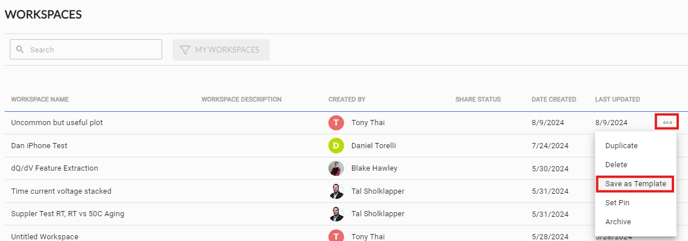
- Locate the Workspace you want to save as a template.
- Click on the options icon (three dots) to the right of the Workspace name.
- Select Save as a Template from the dropdown menu.
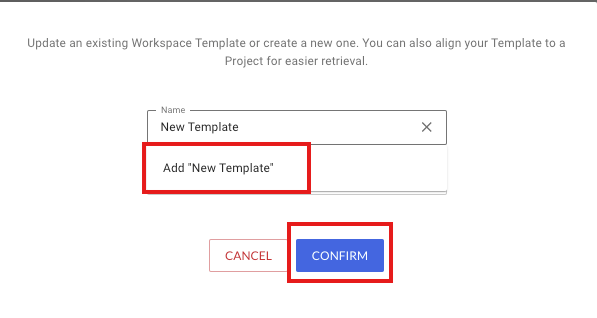
- Type a name for your Template, then select Add "___". You can also update an existing Template by selecting it from the list.
- Assign your Template to a Project, if desired.
How to Use a Template with New Data:
Once a Workspace is saved as a template, you can easily apply it to new data sets:
- Navigate to the Search Page
- Select Your Data: Choose the data set you want to analyze.
- Apply the Template:
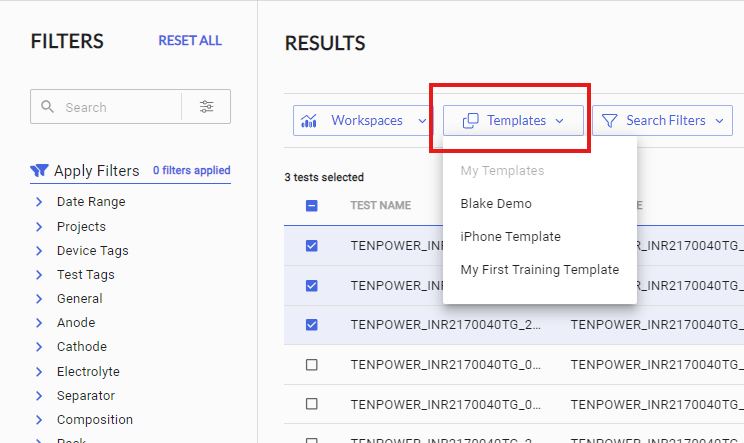
- Click on the Templates button at the top of the page.
- Select the template you previously saved from the list of available templates.