![Voltaiq_Logo_Black_Transparent- 600.png]](https://1913583.hs-sites.com/hs-fs/hubfs/Voltaiq_Logo_Black_Transparent-%20600.png?height=42&name=Voltaiq_Logo_Black_Transparent-%20600.png)
Getting to your support tickets
- In Voltaiq, click the Help button.
- The first time you open it, you'll see a prompt to authorize access. Click Authorize — this is a one-time step, and you won't be asked again.
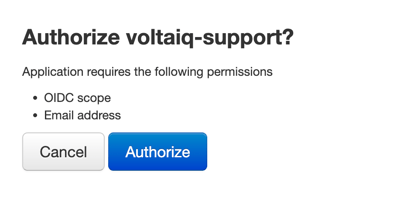

You're signed in automatically through your Voltaiq login, so there's no separate password to manage.
Navigating the portal
Your portal shows the tickets associated with your email address. From here you can:
- Search by keyword or phrase to find a specific ticket.
- Filter by status to switch between Open and Closed tickets.
- Open any ticket to view its full conversation history.
Each ticket is either Open or Closed. A ticket is marked Closed once your issue has been resolved.
Submitting a new ticket
- Click File a new support ticket.
- Your email address is filled in automatically.
- Enter a ticket name — a short summary of your request.
- Select an issue type.
- Add a description with as much detail as possible.
- Optionally, attach screenshots or files to help explain the issue.
- Submit. Your new ticket will appear in the portal, where you can track and respond to it.
Responding to a ticket
While a ticket is open, you can reply in two ways:
- In the portal — open the ticket and respond directly.
- By email — reply to our message as you would any email.
Either way, your messages and ours stay together in a single thread