![Voltaiq_Logo_Black_Transparent- 600.png]](https://1913583.hs-sites.com/hs-fs/hubfs/Voltaiq_Logo_Black_Transparent-%20600.png?height=42&name=Voltaiq_Logo_Black_Transparent-%20600.png)
Step-by-Step
- Within your Workspace, open a new - or existing - Text Block Widget
- On the Text Block Menu Bar, you'll see that a new set of table icons have been added
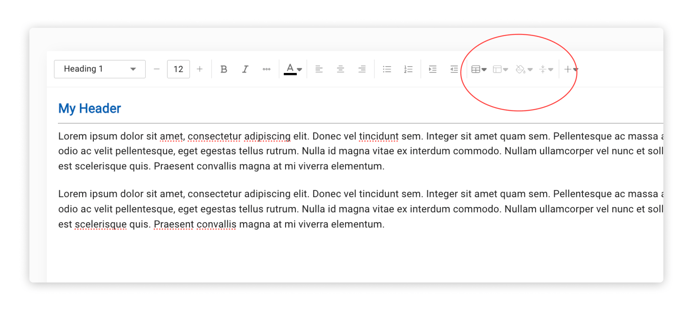
- Within the Text Block, position your cursor where you'd like to begin building your table
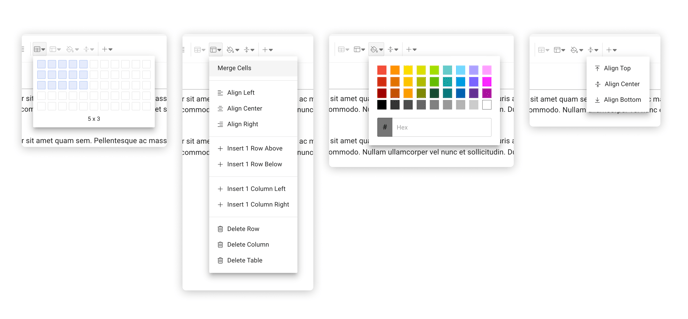
- Use the table icons, which should all be familiar to you, to create and format your table
- Set initial table column and row counts
- Add, delete and merge columns and rows
- Configure cell colors and alignment
- Style text content of the table using the already available text controls
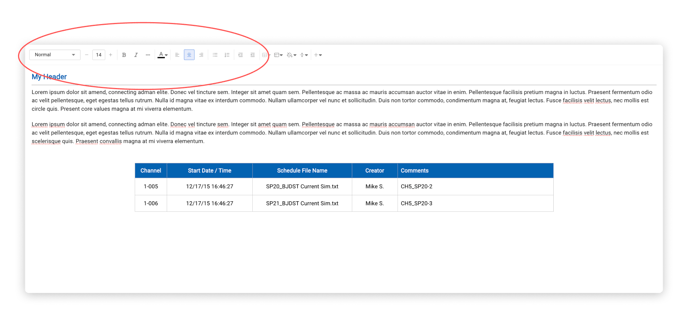
Note: You can easily copy and paste content from an existing spreadsheet into your cells. Even easier, you can copy and paste an entire table into the Text Block and then style as you like.
Let's build some tables! 🎉