![Voltaiq_Logo_Black_Transparent- 600.png]](https://1913583.hs-sites.com/hs-fs/hubfs/Voltaiq_Logo_Black_Transparent-%20600.png?height=42&name=Voltaiq_Logo_Black_Transparent-%20600.png)
What Are Annotations?
Annotations are customizable text labels that you can place directly onto plots within a widget. They help provide clarity, context, or insights about specific data points or trends.
How to Add Annotations to a Widget
-
Open an Existing Workspace:
- Navigate to the workspace containing the widget where you’d like to add annotations.
-
Enter Edit Mode:
- Click the Edit button in the top-left corner of the widget box where you’d like to add the annotation.
-
Access the Annotations Tool:
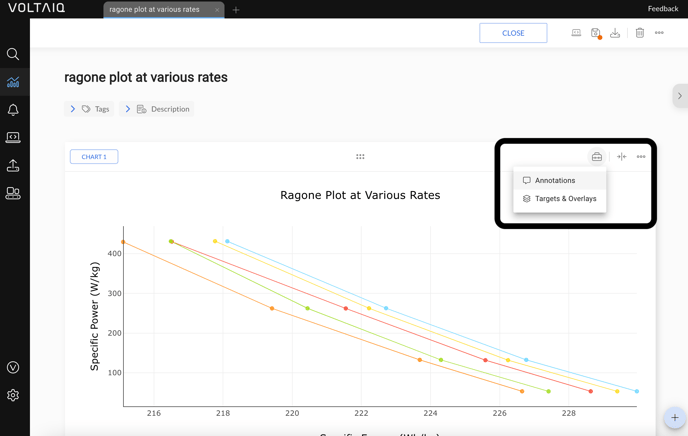
- Click the toolbars icon in the top-right corner of the widget box.
- From the dropdown menu, select Annotations.
-
Add a New Annotation:
-
- Click the Add Annotation icon, located to the right of the toolbox bar.
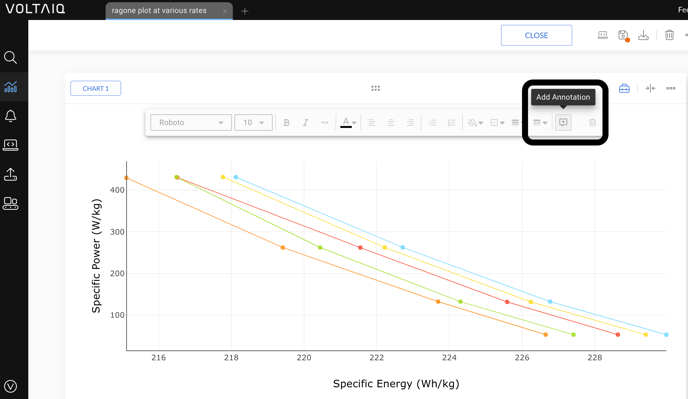
- Click the Add Annotation icon, located to the right of the toolbox bar.
- A new text box will appear in the center of the chart widget. You are ready to start typing!
- You can add as many annotations as you like, and you can use drag 'n drop to position the annotation on the chart where you need it. To resize the annotation, drag the box's 'corner' icon.
Formatting Your Annotation
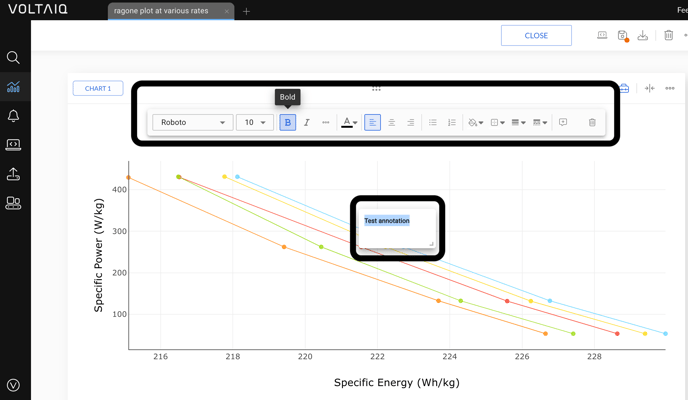
- Use the text formatting options located at the top of the annotation box to style your text. You can:
- Adjust font size and style.
- Add bold, italics, or underlining.
- Change text color.
Editing Existing Annotations
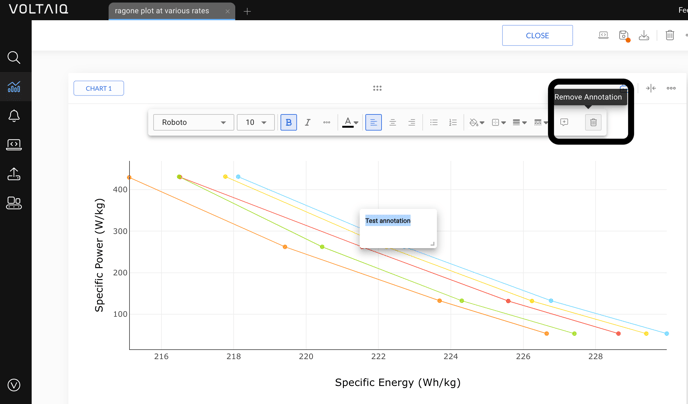
- Select an existing annotation on the plot.
- Use the text box to update the content or adjust its formatting.
- Changes are automatically applied within the widget.
Saving Your Changes
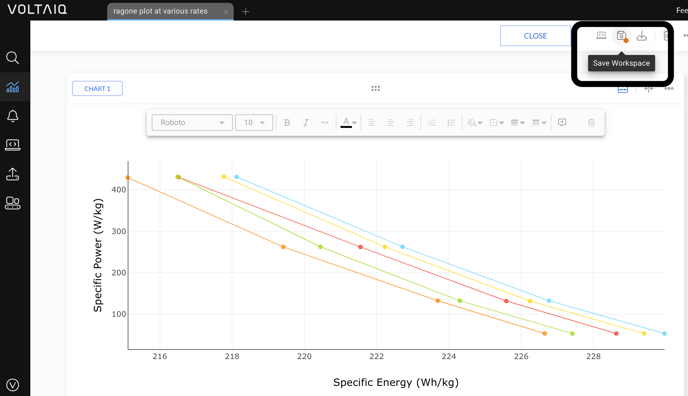
- After making your annotation(s), click the Save Workspace button in the top-right corner of the workspace to preserve your changes.
- If you’re finished editing the widget, click the Chart button in the top-left corner of the widget box to return to the regular view mode.
Tips for Using Annotations Effectively
- Use annotations to highlight key data points, explain anomalies, or add context for stakeholders reviewing the chart.
- Keep your annotations concise for clarity.
- Save your workspace regularly to avoid losing edits.