![Voltaiq_Logo_Black_Transparent- 600.png]](https://1913583.hs-sites.com/hs-fs/hubfs/Voltaiq_Logo_Black_Transparent-%20600.png?height=42&name=Voltaiq_Logo_Black_Transparent-%20600.png)
In Voltaiq, data is organized into Projects. For a user to be able to see and interact with data for a Device in Voltaiq, they must have access to the Project that contains the Device. Every Device can only belong to ONE Project, but a user can have access to zero, one, multiple, or all Projects.
If your team has data that should only be viewed by certain team members, Projects are a great way for all of your desired stakeholders to still have access to Voltaiq without seeing privileged data and information that should be saved for only a small group of users.
Users can manually assign one or multiple Devices to existing Projects. To learn how to do this, please see the following article (add link). Note that it's possible that Voltaiq already automatically assigned Projects for your team. Contact Voltaiq at support@voltaiq.com or your team's administrator to learn more about how Projects are automatically assigned for your team.
To create a new Project, follow the steps below:
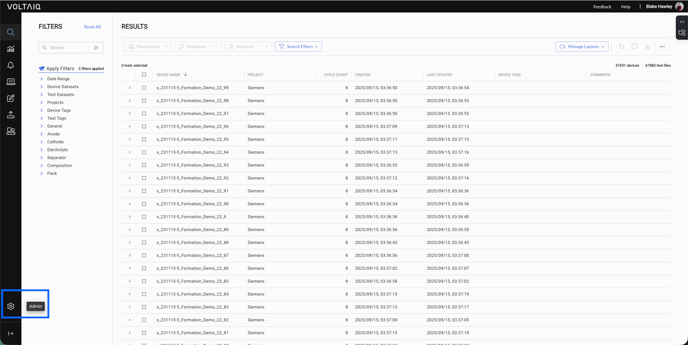
1. Navigate to the Admin panel by clicking the gear icon in the lower left corner of the screen.
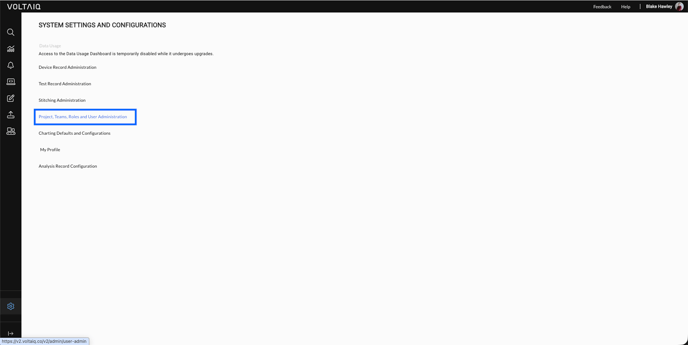
2. Select Projects, Teams, Roles and User Administration from the menu.
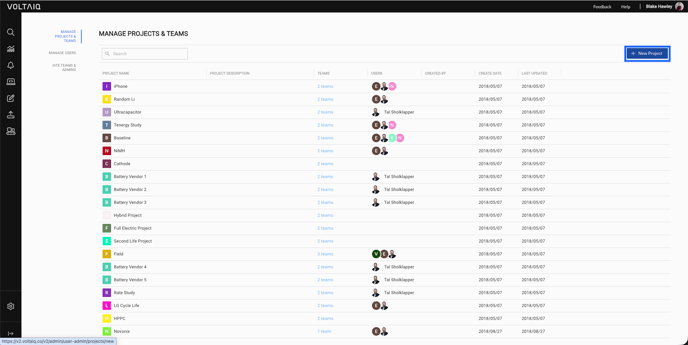
3. Select New Project in the top right corner of the screen.
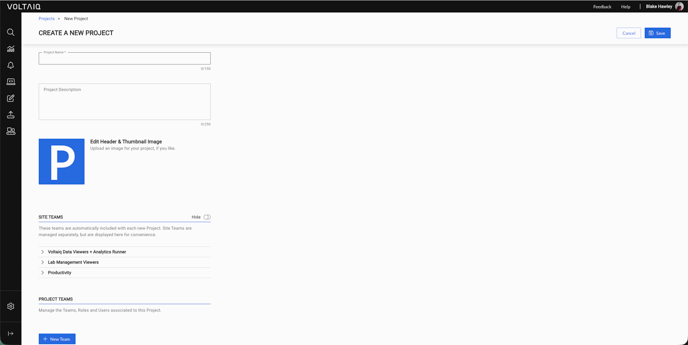
4. Give your Project a name and (optionally) a description, thumbnail image, and Teams. Teams define the specific users that have different access levels to data within the Project. To learn more about creating user accounts, click here. To learn more about Teams and how to create them, please check this article.
Once finished, click Save in the top right corner.
Congratulations! Your new Project has been created.