![Voltaiq_Logo_Black_Transparent- 600.png]](https://1913583.hs-sites.com/hs-fs/hubfs/Voltaiq_Logo_Black_Transparent-%20600.png?height=42&name=Voltaiq_Logo_Black_Transparent-%20600.png)
In Voltaiq, data is organized into Projects. For a user to be able to see and interact with data for a Device in Voltaiq, they must have access to the Project that contains the Device. These steps will show you how to add user accounts to Projects and give them the intended level of access to interact with the data within that Project.
This article assumes you have already created Projects and user accounts. For quick how-to articles on these steps, click here for making Projects and click here for making user accounts.
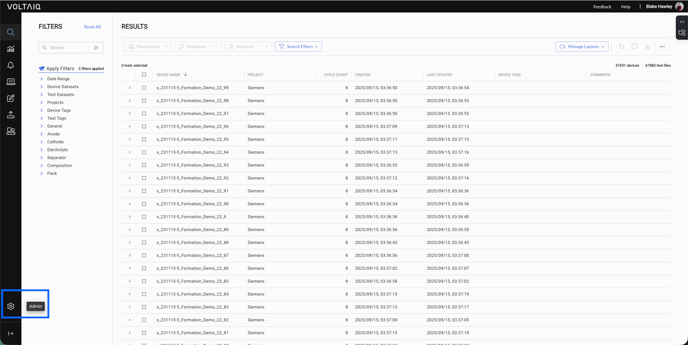
1. Navigate to the Admin panel by clicking the gear icon in the lower left corner of the screen.
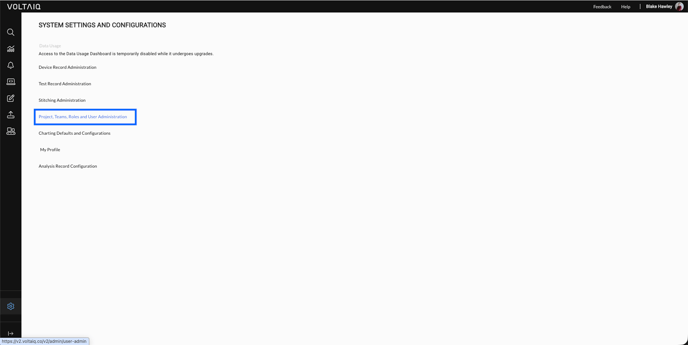
2. Select Projects, Teams, Roles and User Administration from the menu.
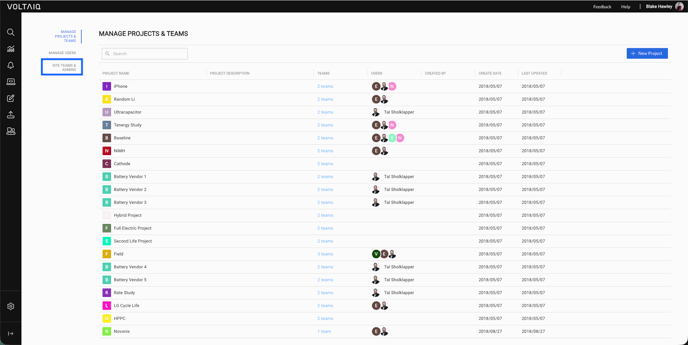
3. Determine whether you need to assign a user to all Projects (including the Master Project) or to a particular Project. If you are unsure of the difference between the Master Project and created Projects, check out this brief article.
4. To assign a user to all Projects, click the Site Teams & Admins button in the top left corner.
5. Determine whether the new user should be a Site Admin (Step 6a), should have a specific role on all Projects on an existing Team (Step 6b), or should have a specific role on all Projects on a new Team (Step 6c). A Site Admin has full permission across all Projects. For more limited permissions, choose an existing Site Team or click the button to create a New Site Team.
For a description of the possible permissions in Voltaiq, view this reference on setting roles in Voltaiq.
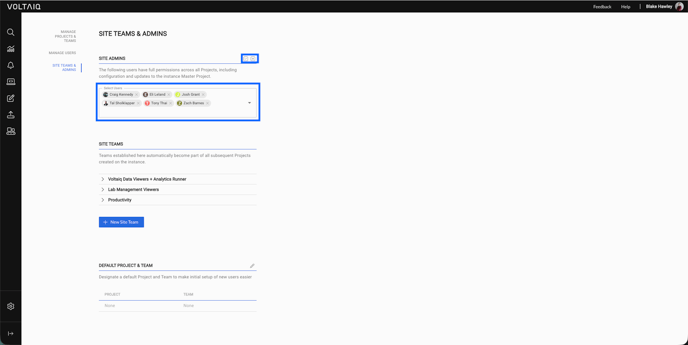
6a. To add the user as a Site Admin, click the pencil icon next to Site Admins, click the resulting text box, then click the checkbox to save your changes. Alternatively, if you would like to discard changes you made, click the X button.
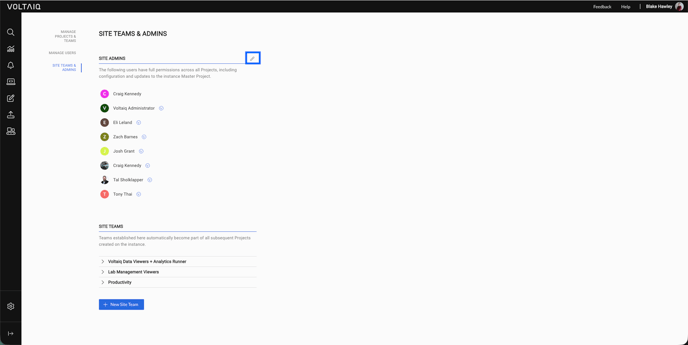
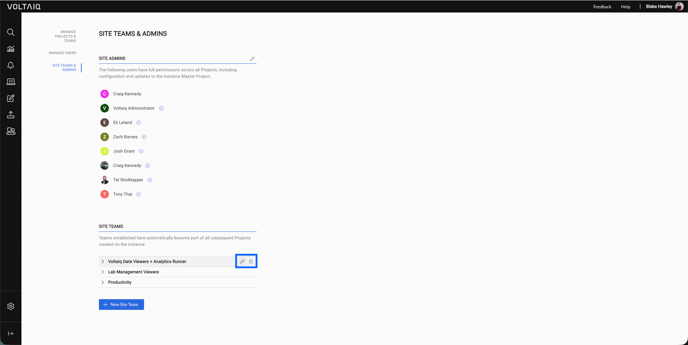
6b. To add the user to an existing Team with a specific role, select the pencil icon next to the Site Team that you would like for the user to join. You can also click the name of the Team to view a dropdown revealing the current members of the team, or select the trash can icon to delete the Team entirely. In the next modal, click the dropdown list of users and add the name(s) of the user(s) you would like to add to the team. Note that you can also change the name of the Team or the Roles associated with the Team, but that these changes will impact ALL users assigned to the Team. When you are finished with your changes, click Save.
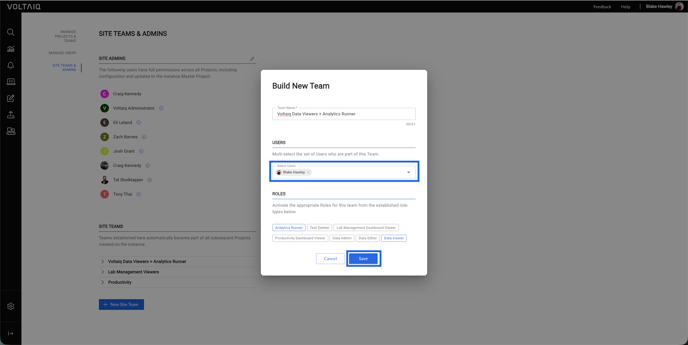
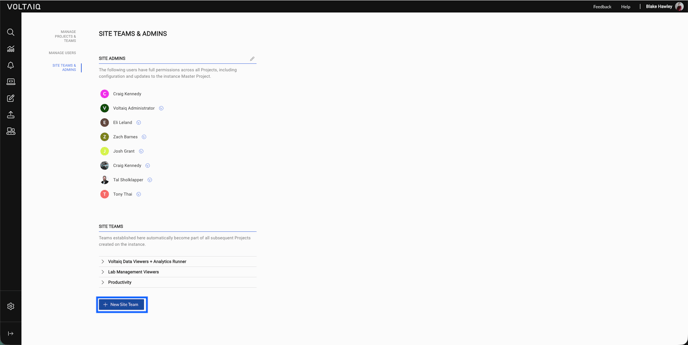
6c. To add the user to a new Team, click the New Site Team button. Fill in the name, Users, and Roles for your new Team, then click Save.
Congratulations! You have successfully updated data access for your user base in Voltaiq.